|
Performance problems are rarely obvious from reading code. A function that looks simple may be called millions of times.
A seemingly fast operation may block on I/O or trigger expensive memory allocations. Without measurement, developers rely on intuition — which
is frequently wrong about where bottlenecks actually are. PhpED 22 introduces the brand-new PHP Performance Explorer — a modern
FlameGraph sampling profiler with a rich, interactive UI based on the Firefox Profiler engine and reworked to natively support PHP. Instead
of instrumenting every function call, it periodically captures the current call stack, so the overhead stays low while still producing a statistically
accurate picture of where time is spent.
For information about supported platforms and how to install the PHP Debugger and Profiler modules, please see the
debugging PHP on various platforms page. The classic line-level
PHP Profiler remains fully supported and is still the right tool when you need precise per-line timings,
hit counts, memory deltas or SQL query timing.
Why a sampling FlameGraph profiler?
A profiler answers the fundamental question: where is time being spent? More specifically, the FlameGraph Profiler helps investigate and improve:
- CPU hotspots — Which functions consume the most execution time? Is the cost in the function itself (self time) or in what it calls
(running time)? A function with high running time but zero self time is just a dispatcher — the real cost is deeper in the tree.
- Building output and template layout costs — How much time is spent in template processing? Reading a property right after modifying it is
a classic performance trap that profiling makes visible.
- Service call latency — Are requests to external services blocking too much? What requests are dominating in time? A slow output might be
a waterfall of sequential requests rather than a code problem.
- Regression detection — After a code change, did performance get worse? Comparing profiles before and after reveals exactly what shifted
and by how much.
The goal is to move from "it feels slow" to "function X in module Y accounts for 40% of the time during this interaction" — then
fix the right thing instead of guessing.
How sampling works
The profiler periodically stops execution (e.g. every 1ms) and captures the current call stack. Over thousands of samples, a statistical picture emerges
of where time is spent. If a function appears in 30% of samples, it is responsible for roughly 30% of the execution time.
There is a tradeoff in sampling rate. Higher rates (e.g. 5 microseconds) capture more detail but add profiler overhead that can skew results. Lower rates (e.g. 2ms)
have minimal overhead but may miss many short-lived functions. A practical approach is to keep the default rate and run the profiled action multiple times to
accumulate enough samples naturally.
Samples are general-purpose — they capture whatever is running without requiring any code changes. But they are probabilistic: a very fast
function that runs between two sample points may never be captured.
When the sampling rate is set to zero, the profiler samples every executed line. While this mode is not intended for precise timing measurements, it provides
complete execution tracing, capturing every function call, executed line, and their exact execution order. This makes it especially useful for detailed flow
analysis and code path investigation.
Note: When the FlameGraph profiler is selected in the profiler dropdown, the classic per-line / memory / SQL profilers will not be executed. Switch
back in the dropdown when you need the classic line-level views.
UI Layout: Timeline and Analysis Panels
The interface is split into two main areas: the Timeline (top half) and the Analysis Panels (bottom half). The timeline provides the
chronological "when" context; the panels provide the analytical "what and why."
Timeline
The timeline is the navigational backbone of the profiler. It shows everything that happened during the recording session laid out chronologically, and
every interaction you make with it — selecting a range or clicking a sample — drives what the analysis panels below display.
Activity graph. The thread row contains a miniature graph where the X axis is time and the Y axis represents CPU usage. This gives an immediate
visual fingerprint of the thread's behavior: tall spikes indicate heavy CPU work, flat lines indicate idle periods. Clicking a specific point on the
activity graph selects that individual sample and opens the corresponding stack in the Call Tree panel — a powerful way to ask "what exactly
was running at this moment?" When samples are filtered out by search or transforms, those regions appear greyed out, giving visual feedback on what
portion of the timeline your current analysis covers.
Range selection. Click and drag anywhere in the timeline to select a time range. This is the primary mechanism for focusing your analysis. All
panels below recompute dynamically as you drag, so you can interactively sweep across the timeline and watch the Call Tree or Flame Graph update in real
time. Click the zoom button to commit the selection. Committed ranges stack as breadcrumbs in the toolbar — you can progressively drill from a
30-second recording down to a sub-millisecond event, and navigate back at any point.
Analysis Panels
The panels provide different analytical lenses on the same underlying sample data for the currently selected time range. Switching between
them is not about seeing different data — it is about seeing the same data from different angles, each optimized for answering different questions.
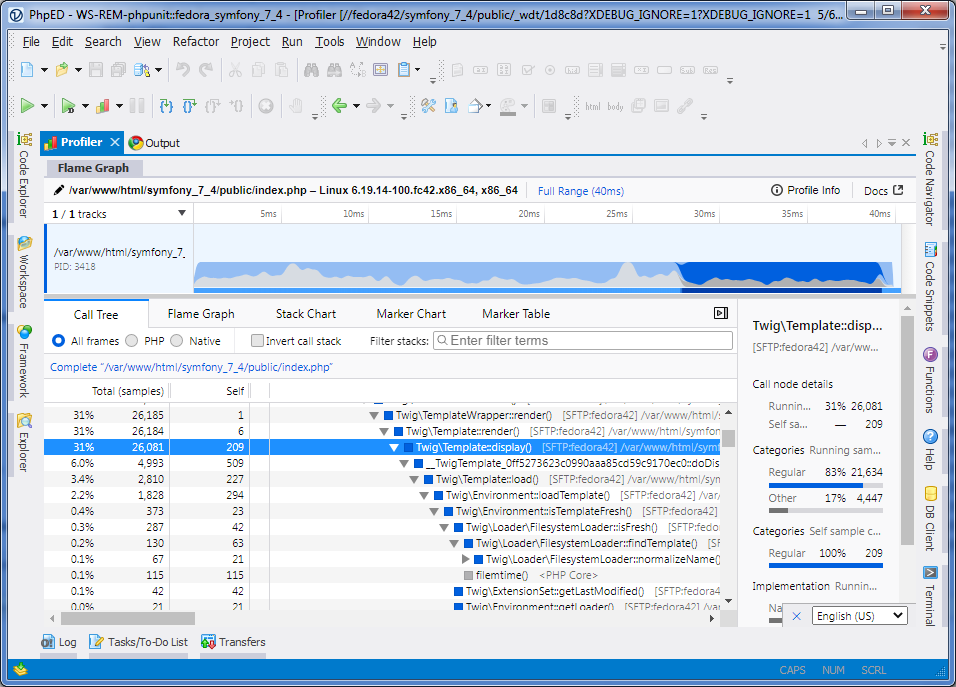
Call Tree
The Call Tree is the primary analytical view and typically where most investigation happens. It answers: which functions is the program spending the
most time in?
The profiler aggregates all stack samples within the selected time range by merging common ancestors into a tree structure. If 1000 samples all have
function A calling function B at the root, those merge into a single A → B path in the tree. Where stacks
diverge (e.g. B sometimes calls C, sometimes calls D), the tree branches.
Each node in the tree shows two critical metrics:
- Running time (also called total time) — the total time the function was anywhere on the call stack, including time spent in all
functions it calls. A function at the root of the tree will have a running time close to the entire selected range.
- Self time — the time the function was the leaf of the stack, meaning it was the function actually executing when the profiler
sampled. This is where CPU work is actually happening.
The distinction matters enormously. A function with 500ms running time but 0ms self time is just a caller — it dispatches to other functions that
do the real work. A function with 500ms self time is a genuine hotspot. When looking for optimization targets, sort by self time first. Functions
with high self time are where optimizations will have the most direct impact.
Expand any node to walk up the call tree and see the full path from root to leaf. This reveals the calling context: who called this expensive
function, and through what chain? If a function like swap() has high self time, expanding it might reveal that 99% of calls come through
bubbleSort() and only 1% through selectionSort() — telling you exactly which caller to optimize.
A sidebar next to the Call Tree provides a category breakdown for the selected function, showing how its time splits across PHP and native execution.
Flame Graph
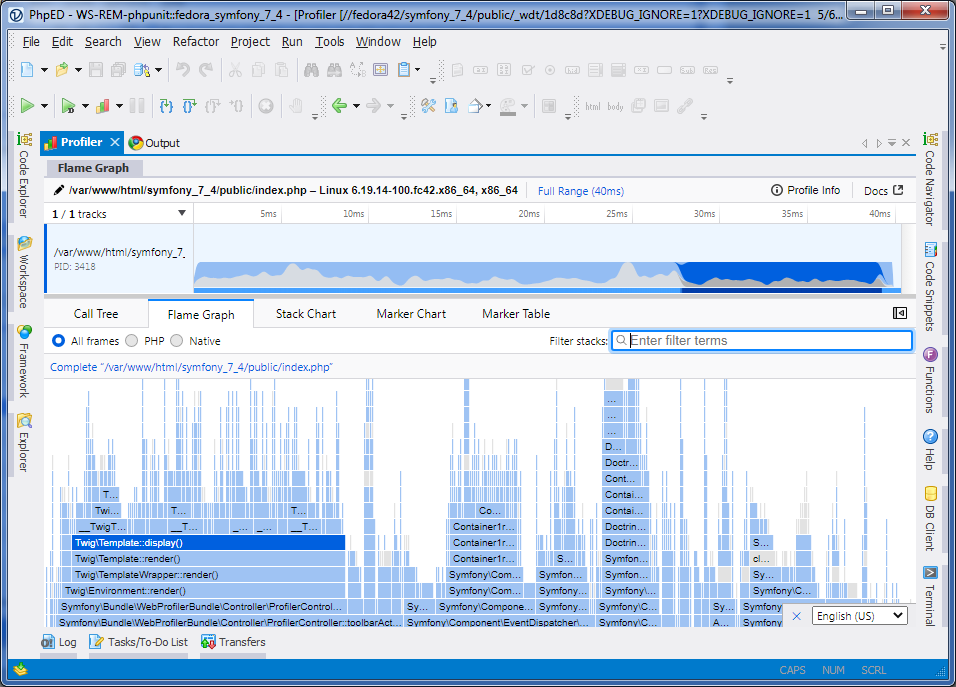
The Flame Graph presents the exact same call tree data as a visual diagram. Each function is a rectangle (called a frame). The width of a frame
represents its total/running time relative to the selected range. Wider frames consumed more time. Frames are stacked vertically to show
caller-callee relationships: a parent frame sits below its children.
The key visual insight: the empty horizontal space below a frame represents its self time. If a frame is 100px wide but its children only occupy
60px, the remaining 40px of width is self time — that function was doing its own work for 40% of its total time. Frames at the very top of the
graph (with no children above them) are pure self time — the actual execution hotspots.
Unlike a Stack Chart (described below), the Flame Graph is not chronological. Frames are ordered deterministically (alphabetically by function
name), not by when they executed. This means that if a function is called in a loop 100 times, all 100 invocations merge into a single wider frame. This
merging is what makes the Flame Graph powerful for aggregate analysis: it compresses thousands of samples into a single compact picture where the widest
frames at the top are immediately the most important optimization targets.
The deterministic ordering has another benefit: it makes comparisons stable. If you select two different time ranges, or compare two different
profiles, the same functions appear in the same horizontal positions. Visual differences between two flame graphs directly correspond to performance
differences.
When to use the Flame Graph over the Call Tree: when you want a quick visual overview of where time goes. The Call Tree is better for precise
numbers and walking specific call paths; the Flame Graph is better for the "big picture at a glance" — spotting that one wide frame at
the top that dominates everything.
Stack Chart
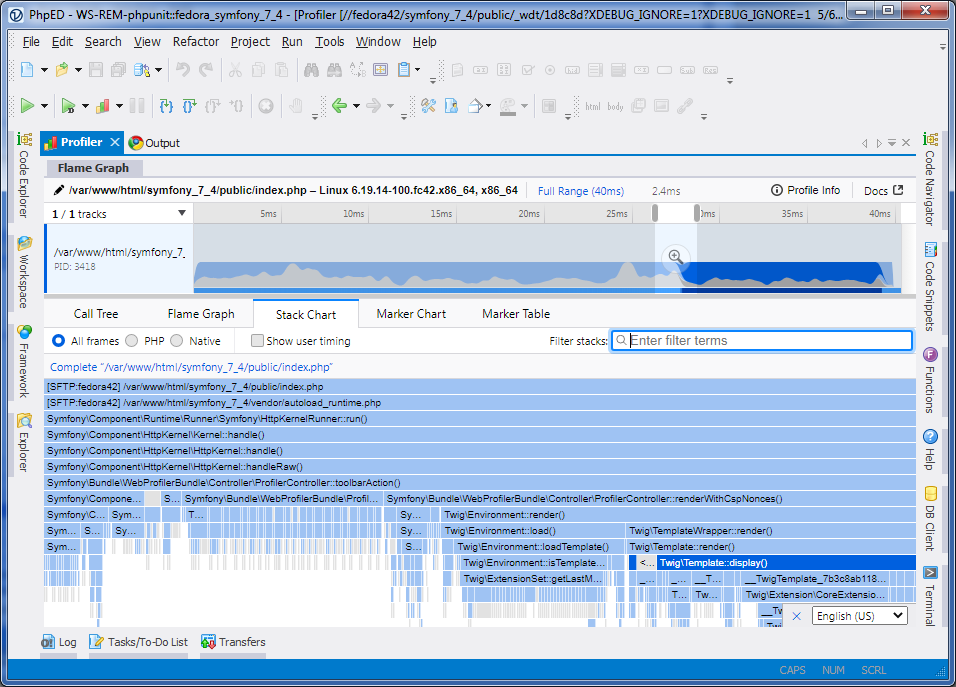
The Stack Chart shows sample data chronologically, aligned with the timeline above. The X axis is time (matching the timeline), and the Y axis
is stack depth. Each column of rectangles represents the call stack at a particular sample point. As you scan left to right, you see the program's
execution unfolding over time.
This is fundamentally different from the Call Tree and Flame Graph, which are aggregates. The Stack Chart preserves temporal information: you can see
when a function was called, how long each invocation lasted, whether it was called in a burst or spread out, and how different functions
interleave over time. The same categories visible in the timeline's activity graph appear at the corresponding timestamps in the Stack Chart, providing
a detailed drill-down into what the activity graph summarizes.
What you can find here:
- Temporal patterns — Is an expensive function called once, or is it called repeatedly in a tight loop? The Call Tree merges these into
one node; the Stack Chart shows each invocation separately.
- Sequencing — What happened before and after a hotspot? Did a network response trigger a cascade of PHP execution followed by a layout
reflow? The Stack Chart shows this sequence visually.
- Unexpected gaps or blocks — Long horizontal stretches at a shallow stack depth may indicate the main thread is blocked on something
such as a synchronous request, a long GC cycle (yes, PHP has GC since version 5.3), a disk flush, etc.
Important caveat: Because the profiler samples at discrete intervals, the Stack Chart reconstructs the sequence of calls but can miss very short
function calls that happen between samples. What appears as one long continuous call might actually be a rapid sequence of short calls to the same
function. The Call Tree's aggregate view is immune to this artifact.
When to use which panel
Q: "What functions are the biggest CPU consumers overall?"
A: Check Call Tree panel, sorted by self time, or Flame Graph panel and find the widest top frames
Q: "What's the call path that leads to this hotspot?"
A: Check Call Tree panel, expand nodes to walk the path
Q: "Give me a visual overview of where all the time goes."
A: Check Flame Graph panel
Q: "What was happening at this specific moment in time?"
A: Open Stack Chart panel, click the timestamp on time line
Q: "Is this function called once or in a loop?"
A: Open Stack Chart panel, look for repeated patterns
Filtering and transform operations
Real-world profiles are large — thousands of functions across hundreds of thousands of samples. The Performance Explorer provides a set of filters
and transforms that cut through the noise:
- Search filter — drop samples whose stacks don't match a term. Supports function names, domains, URLs. Comma-separated for multiple
terms.
- Implementation filter — restrict to native (PhpCore/C) or PHP stacks only. Isolates PHP performance from engine internals, or vice
versa.
- Invert call stack — flips stacks so self-time functions become roots. The single most effective way to surface hotspots: they appear
as the first rows instead of being buried deep in leaves.
- Transforms (right-click on a node):
- Merge — remove a node, charging its time to its parent.
- Focus — keep only the subtree under a function.
- Focus Self — keep only samples where the function is the innermost frame.
- Collapse — combine subtree or recursive nodes into one.
- Drop — remove samples (e.g. idle functions).
Typical workflow
- Orient — Open the profile. Scan the timeline for CPU spikes.
- Select — Click-drag to select the interesting time range, then commit the zoom. Repeat to narrow further.
- Identify hotspots — In the Call Tree, invert the stacks to see which leaf functions dominate self time. The top entries are your primary
suspects.
- Understand the call path — Expand Call Tree nodes to walk from the hotspot back to the root. Identify which callers are responsible for
the most invocations.
- Visualize — Switch to the Flame Graph for a visual confirmation of the hotspot's relative weight. The widest frames at the top are the
optimization targets.
- Check timing — Switch to the Stack Chart to see whether the hotspot is one long call or many short repeated calls. Look for temporal
patterns like loops or bursts.
The PHP Performance Explorer in PhpED 22 complements the classic line-level PHP Profiler and the PhpED
PHP debugger, giving you a complete toolkit for performance work — from per-line timings and SQL
query analysis to interactive flame graphs and stack charts. Additional technical information is available on the
NuSphere Forum.
Download a free trial
today!
|



 Debugging with PhpED

 Download NuSphere PHP IDE
 Buy NuSphere PhpED® now